
How to combine O&M manuals into one indexed PDF
Combine O&M manuals with linked contents and bookmarks. Follow the steps using a fan manual and a pump manual, then check the PDF and originals before sending.
What the sample contains
The 21-page sample closeout PDF combines a 12-page Greenheck manual and a 5-page Taco manual. Fast Closeouts adds a cover, a contents page with a file list, assembly notes and a section divider. The package includes all 17 original pages.
The sample's contents page links to each manual. Page ranges refer to the assembled PDF.
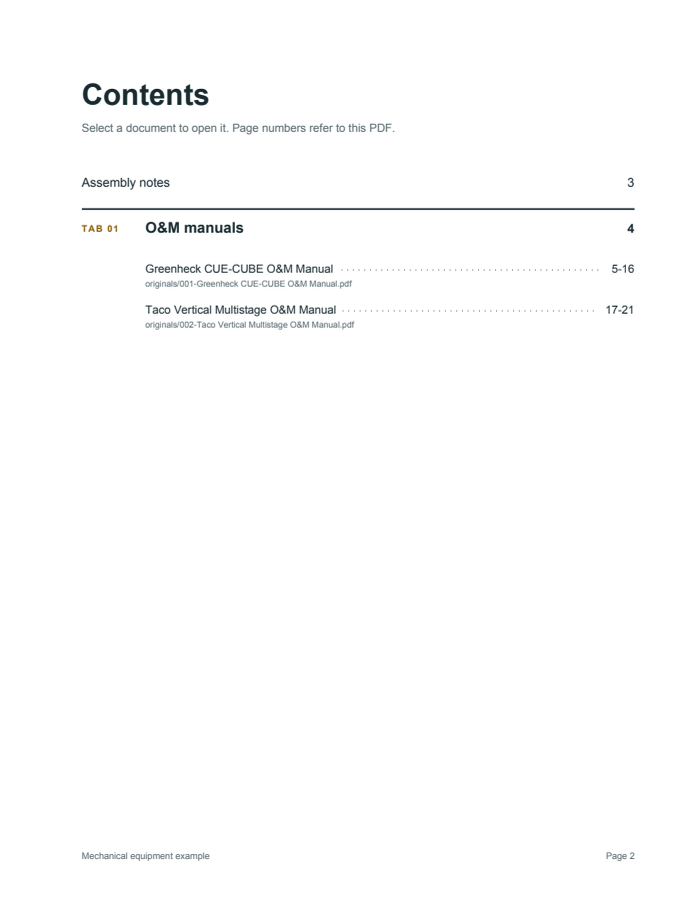
Sample page map
Use the same arithmetic on your own closeout. Original pages plus the added cover, contents, notes and divider pages should equal the total. In the sample, 17 plus 4 is 21.
| Pages | Content | Source |
|---|---|---|
| 1 | Cover | Added by Fast Closeouts |
| 2 | Linked contents and file list | Added by Fast Closeouts |
| 3 | Assembly notes | Added by Fast Closeouts |
| 4 | Section divider for O&M manuals | Added by Fast Closeouts |
| 5 to 16 | Greenheck CUE-CUBE O&M Manual, 12 pages | Manufacturer PDF |
| 17 to 21 | Taco Vertical Multistage O&M Manual, 5 pages | Manufacturer PDF |
Check your manuals
Open each PDF and check that it matches the equipment you installed. Give it a filename you can recognize. Replace damaged files and remove password protection before adding them.
Each job can contain up to 25 PDFs, 250 source pages and 20 MB total. Scans work, but the tool does not make them searchable. Export Word files and spreadsheets to PDF first.
Decide before you upload
Illustrative examples. The situations are invented. Your project's requirements decide each case.
| File | What to do |
|---|---|
| A password-protected manual | Get an unprotected copy from the supplier, or remove the password if you are permitted to. Protected PDFs cannot be added. |
| A scanned startup sheet | Add it as it is. The tool does not make scans searchable. If the recipient requires searchable text, run text recognition in another tool first. |
| A signed or fillable form | Add it, then review signatures, form values and attachments in the original in the ZIP. The combined copy does not keep digital signatures valid. |
| A Word or Excel file | Export it to PDF first. The tool accepts PDFs only. |
| Two manuals with similar names | Give each a readable title that includes its equipment tag, so the contents page tells them apart. |
| A job over 25 PDFs, 250 source pages or 20 MB | Use the project request form, or ask the recipient whether separate closeout PDFs are acceptable. |
Choose PDFs and review the sections
To see a finished example first, choose View a sample closeout in the PDF tool.
- Open the PDF tool, sign in, then choose the PDFs for one job. You can enter a job name or leave it blank.
- Choose Review documents. Check the section suggested for each file. Use the arrows to change the order within each section.
- Confirm your review, then build your closeout. The first one is free. For additional closeouts, preview the result and pay $29 to unlock the full PDF and ZIP.
- Wait for your changes to save. Download the PDF and ZIP now, or return to this closeout from your account later.
Download and inspect both files
Choose Download closeout PDF for the combined PDF. Choose Download PDF + originals ZIP for that PDF, the unchanged originals and a list of files with assembly notes.
The combined PDF retains supported internal navigation and ordinary web and email links. Scripts and file-launch actions are excluded. Read the assembly notes for any unsupported links. Check signatures, form values and attachments in the original PDFs in the ZIP.
Before you send it
- Open the PDF in a desktop PDF reader as well as your browser. Links and bookmarks can behave differently between viewers.
- Click every entry on the contents page. Each should land on the first page of that document.
- Open the bookmarks panel. Check that every section and document is listed in the order you set.
- Add up the pages. Original pages plus the added cover, contents, notes and divider pages should equal the PDF's page count.
- Read every assembly note and decide whether it needs a fix before sending.
- Open the ZIP. Check that it holds one original for each PDF you added, plus the closeout PDF and the file list.
- Open each signed or fillable original from the ZIP and check signatures, form values and attachments there.
- Check the recipient's file-size limit and naming instructions. Rename the PDF if they ask for a specific name.
Check the job requirements before submission
Check the mechanical closeout checklist against the project specifications. Confirm the equipment, required records and delivery format with the recipient. Use the HVAC O&M index template to track the equipment tags and documents before assembly.
The sample uses public manuals from Greenheck and Taco. Neither manufacturer endorses Fast Closeouts.